Click2Charge Integration
This integration is exclusively available for stromleser.one and enables the use of your electricity meter with the Click2Charge app for intelligent solar charging.
Only for stromleser.one
This integration works exclusively with stromleser.one devices.
Part 1: Setup in the Stromleser App
Step 1: Open Stromleser App Settings
- Open the Stromleser app on your device
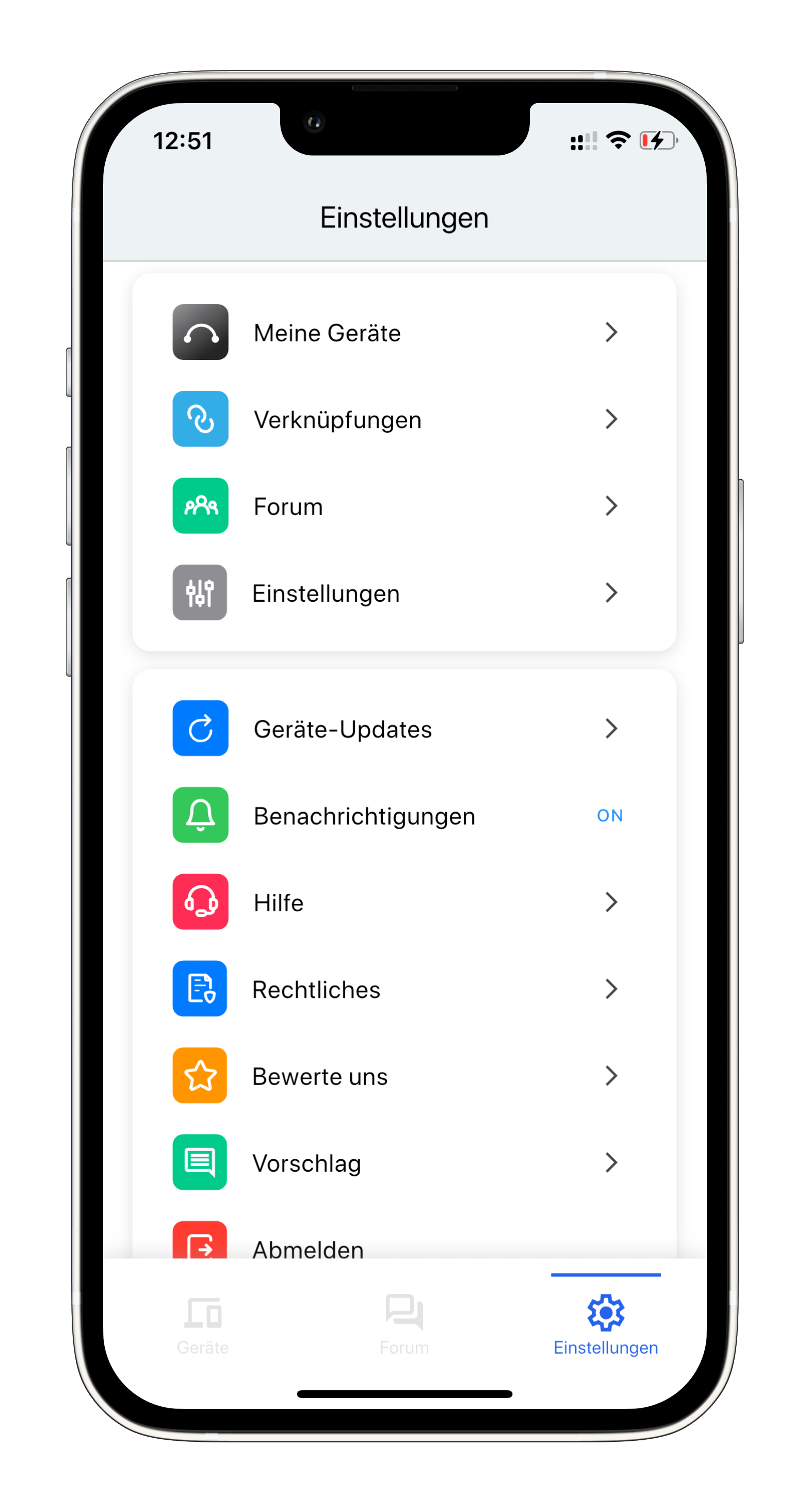
- Navigate to the "Settings" section
Step 2: Access Integrations
- In Settings, tap on "Verknüpfungen" (Integrations/Connections)
Step 3: View Available Integrations
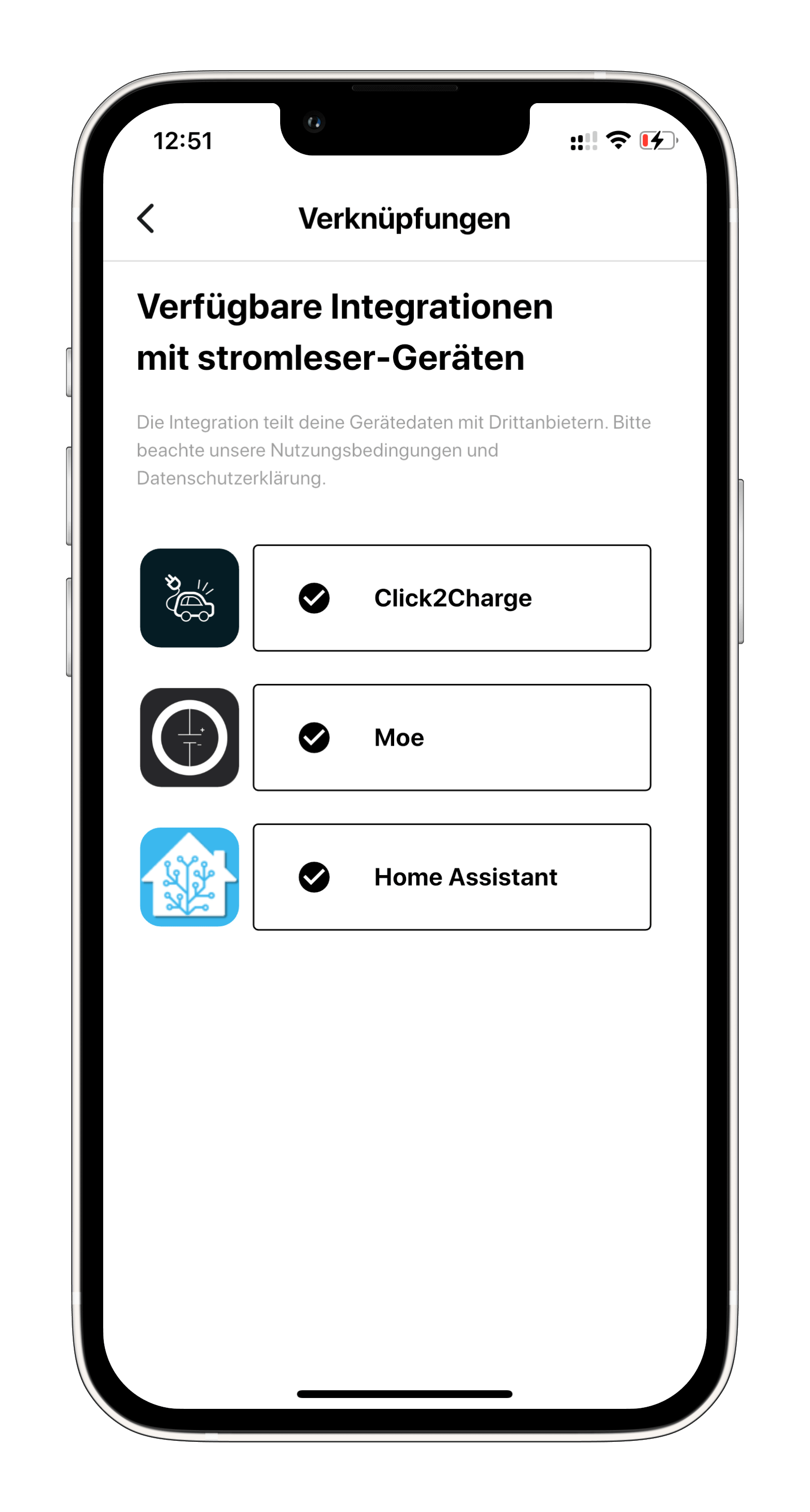
- You'll see a list titled "Verfügbare Integrationen mit stromleser-Geräten" (Available integrations with Stromleser devices)
- You should see Click2Charge listed among other integration options (Moe, Home Assistant)
Step 4: Select Your Device and Copy ID
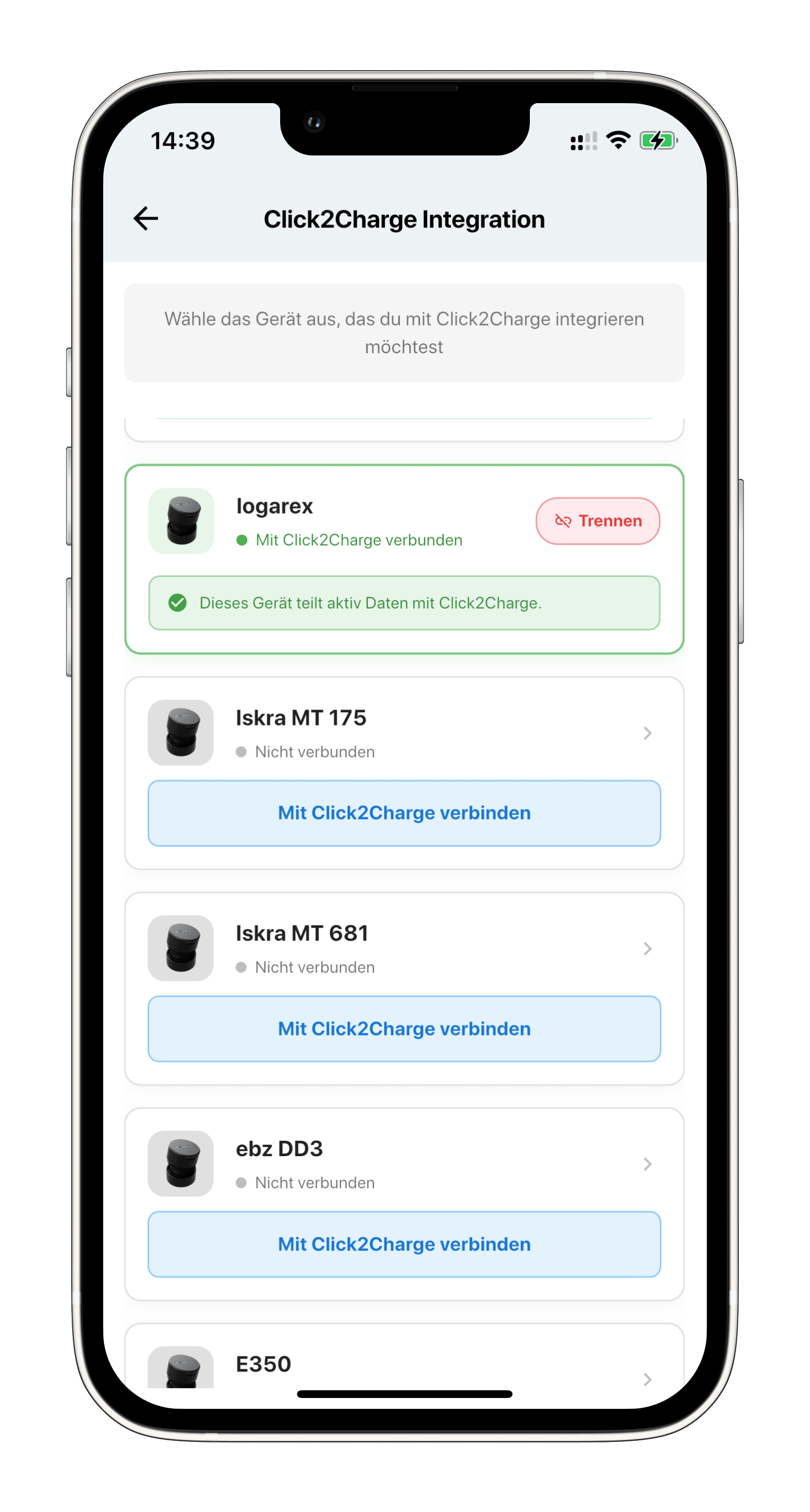
- Tap on "Click2Charge" to view your connected devices
- Select the Stromleser device you want to integrate (e.g., "Iskra MT 175", "Iskra MT 681", "ebz DD3", etc.)
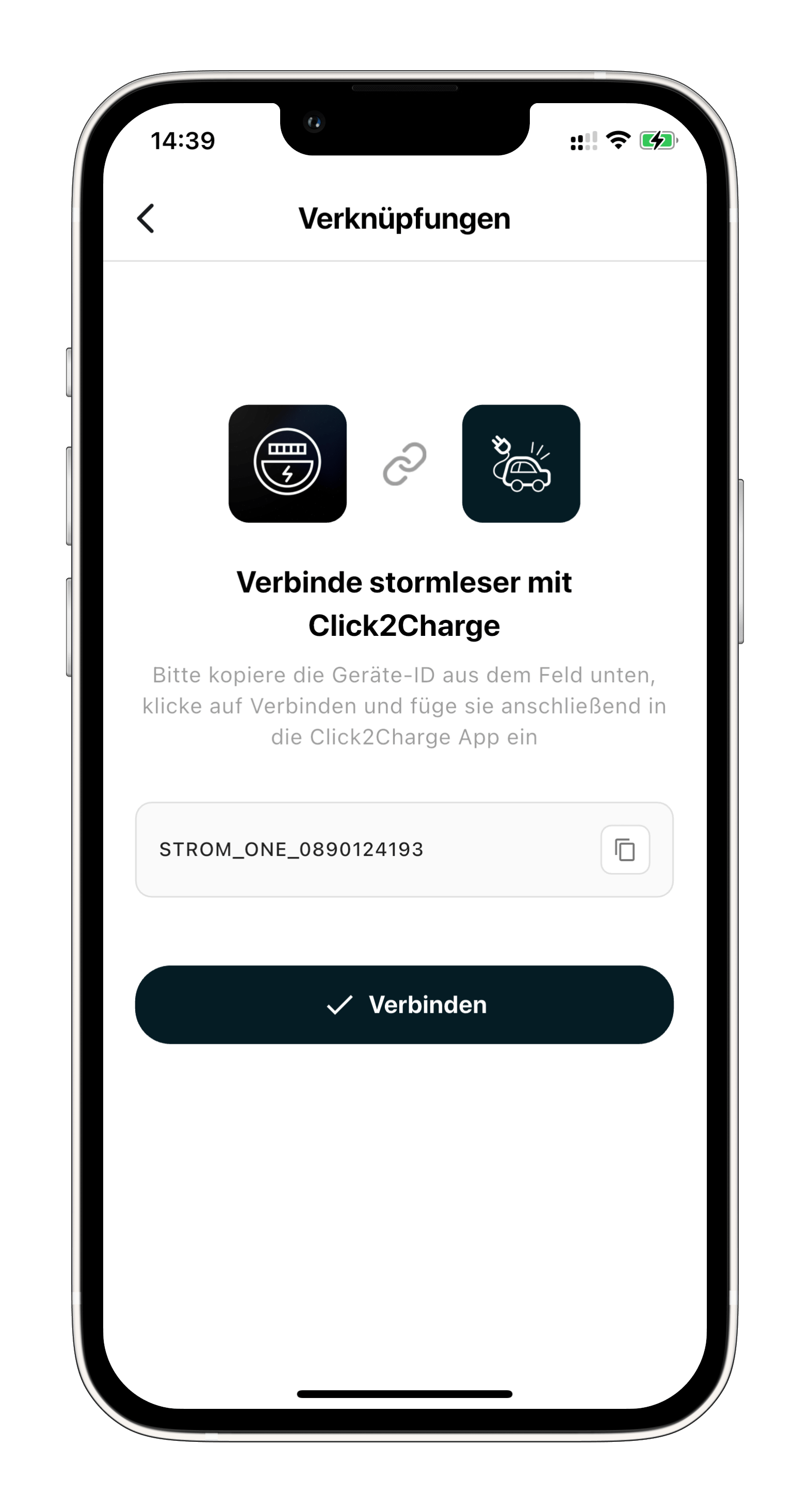
- Copy the Device ID displayed (format:
STROM_ONE_0890124193) - This ID will be used as your username in the Click2Charge app
Part 2: Connect in Click2Charge App
Step 5: Access Click2Charge Menu
- Open the Click2Charge app
- Tap the three-dot menu icon (⋯) in the top right corner
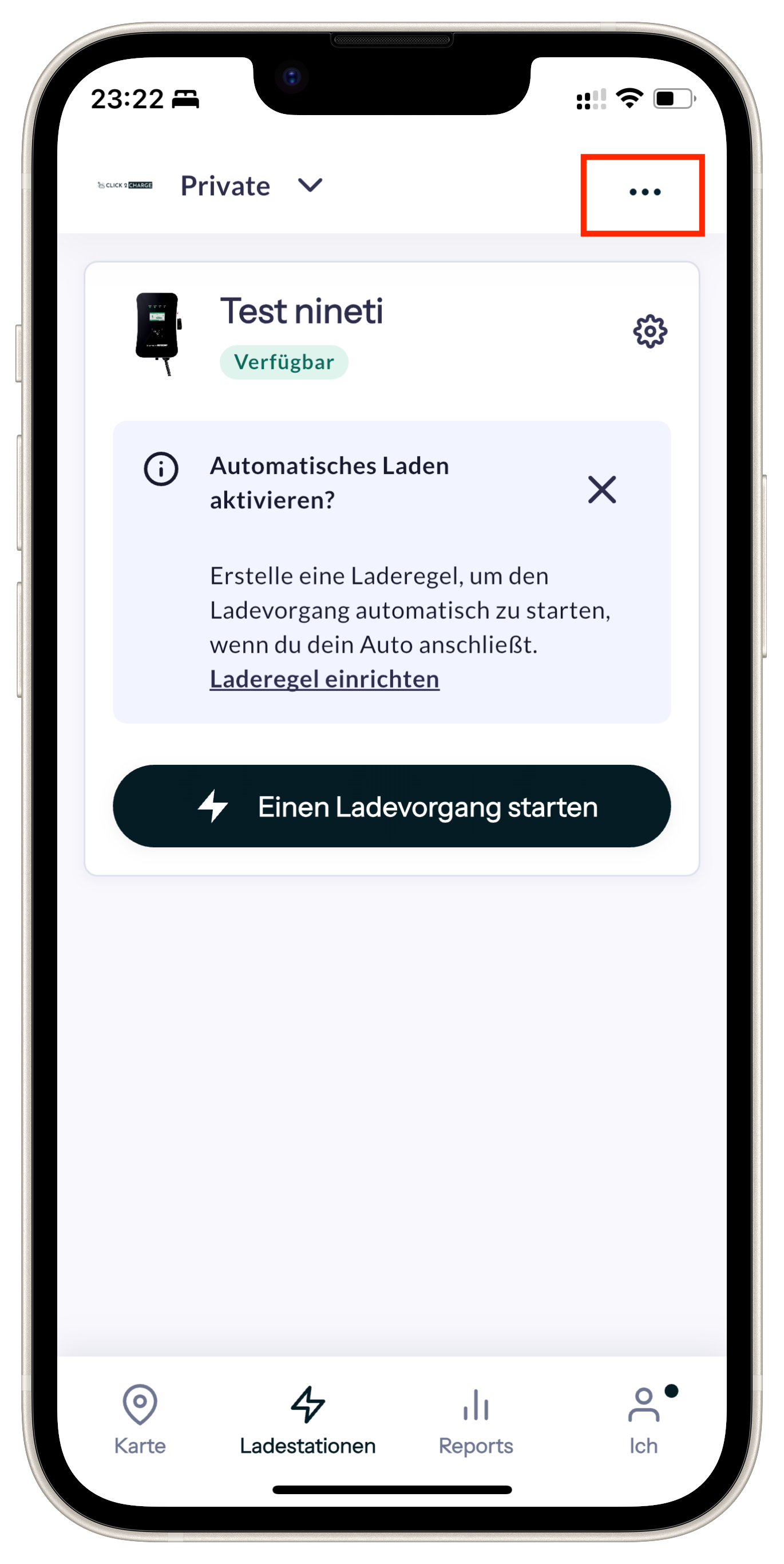
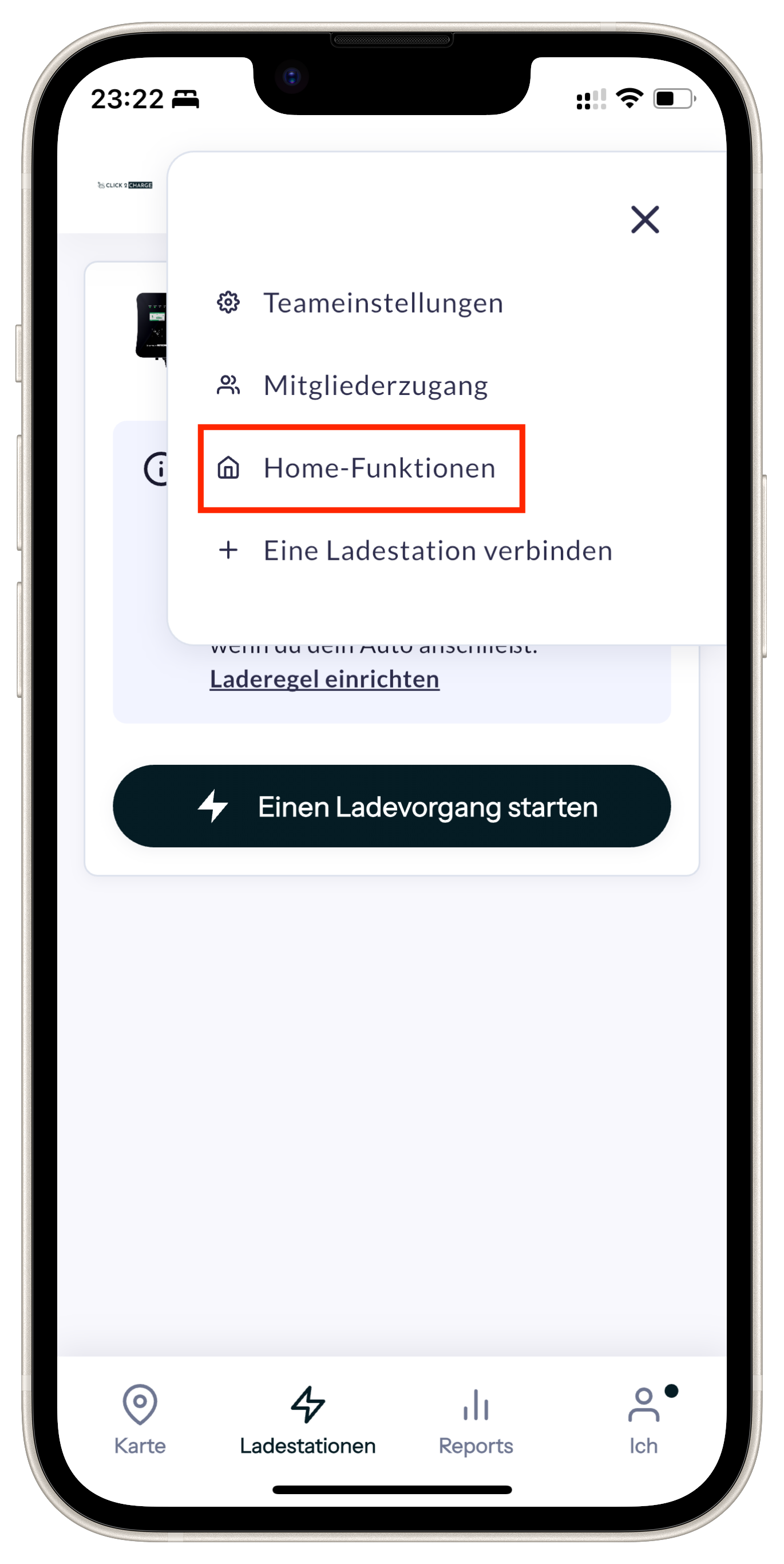
Step 6: Navigate to Home Functions
- From the menu that appears, select "Home-Funktionen" (Home Functions)
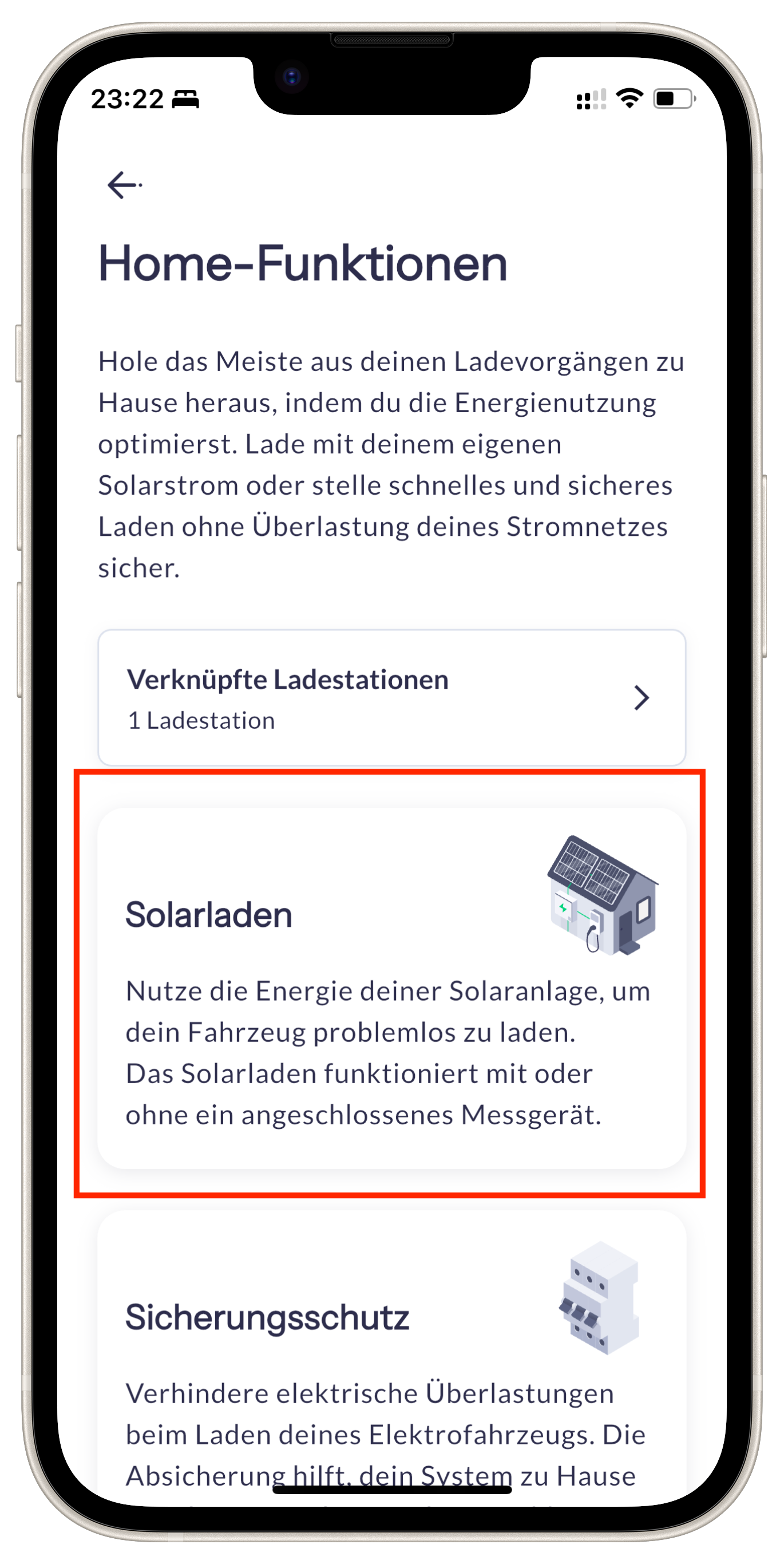
Step 7: Select Solar Charging
- On the Home Functions page, tap on "Solarladen" (Solar Charging)
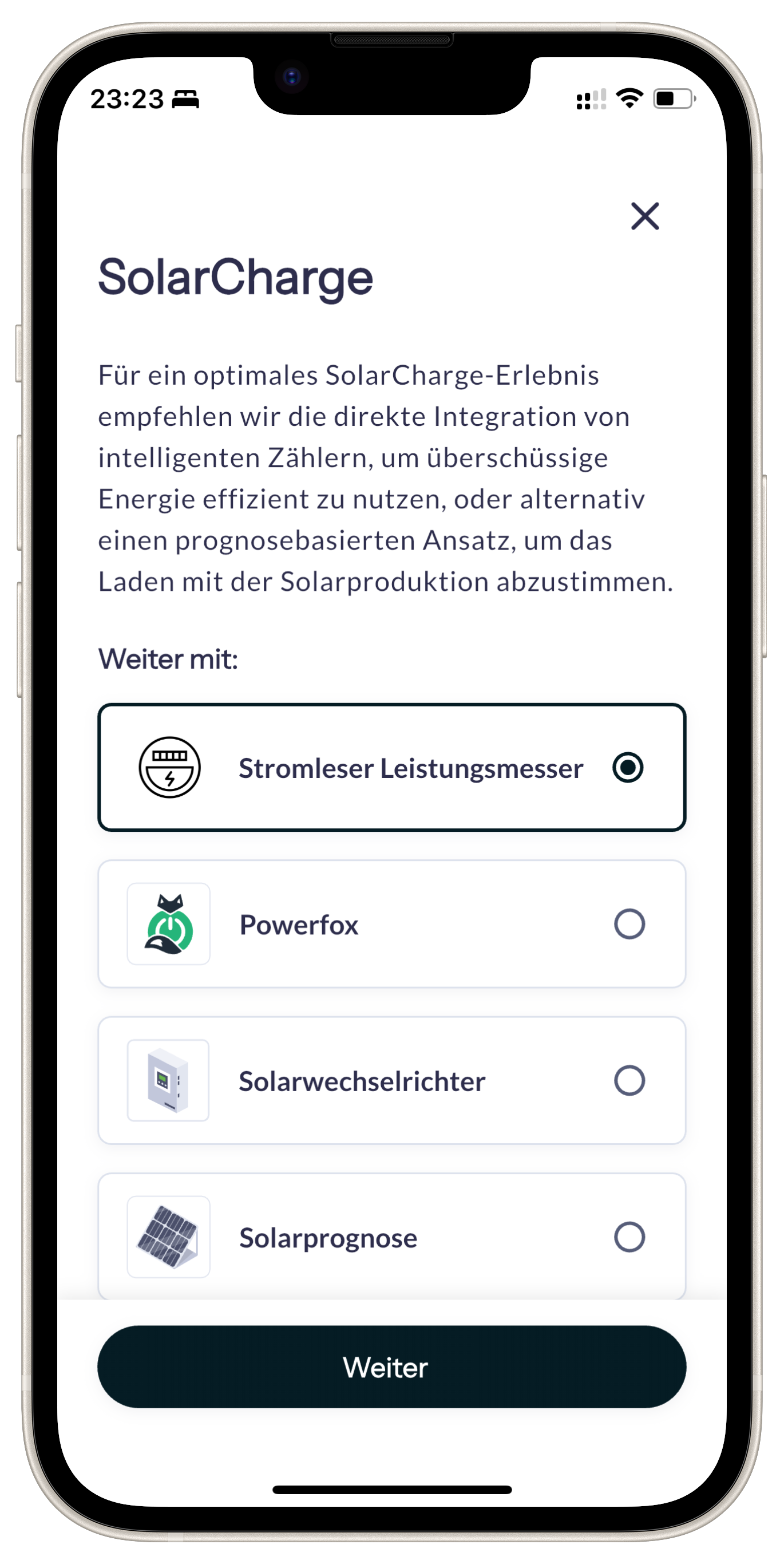
Step 8: Choose Integration Method
- On the SolarCharge screen, select "Stromleser Leistungsmesser" (Electricity Meter Power Meter)
- Tap "Weiter" (Continue)
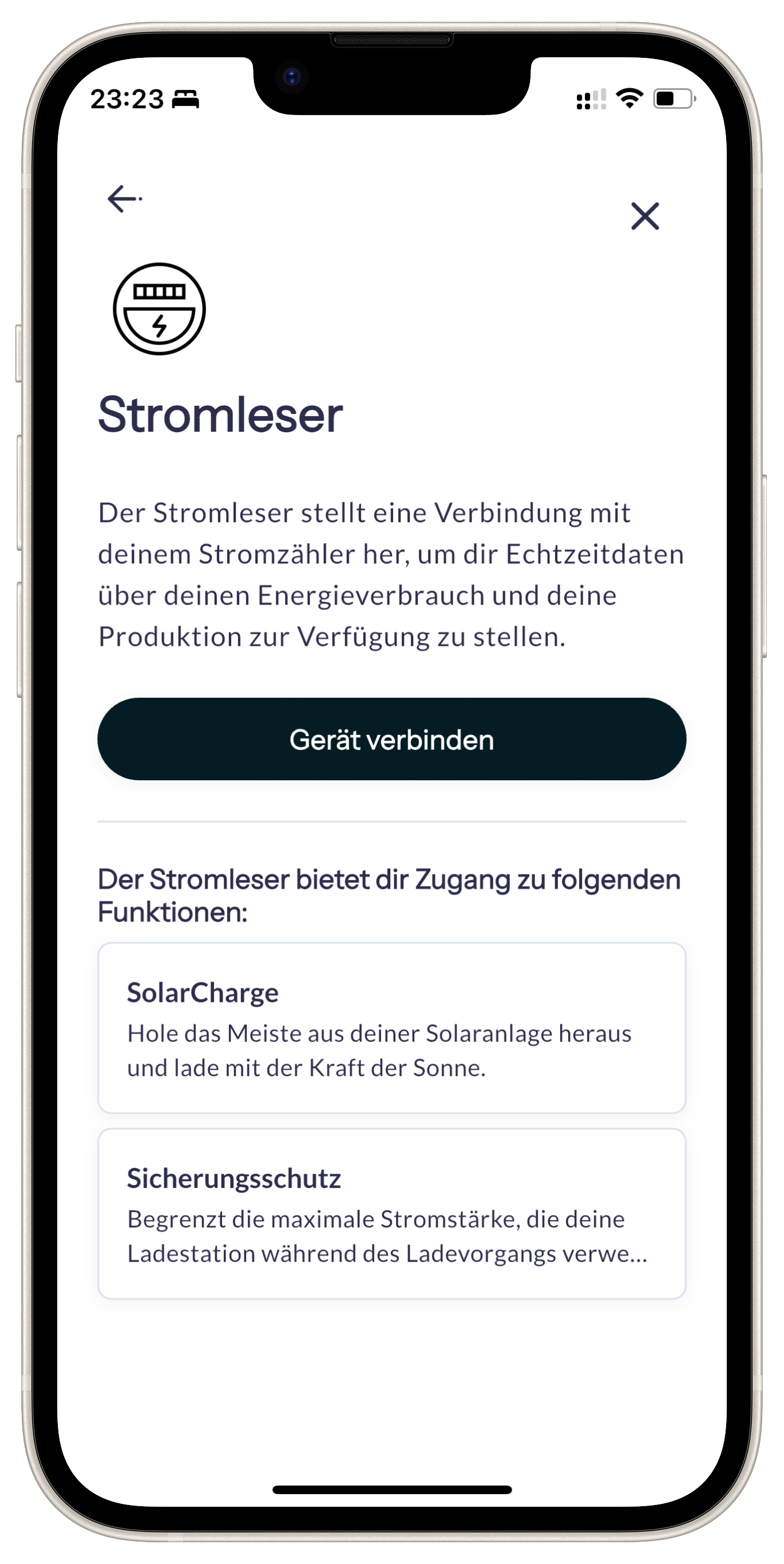
Step 9: Connect the Device
- On the Stromleser connection screen, click "Gerät verbinden" (Connect Device)
Step 10: Enter Device Credentials
- On the registration page "Stromleser-Anmeldeinformationen":
- Kennung (ID): Paste the Device ID you copied from the Stromleser app (e.g.,
STROM_ONE_0890124193) - PIN: Enter any password you choose (e.g., "12345")
- Kennung (ID): Paste the Device ID you copied from the Stromleser app (e.g.,
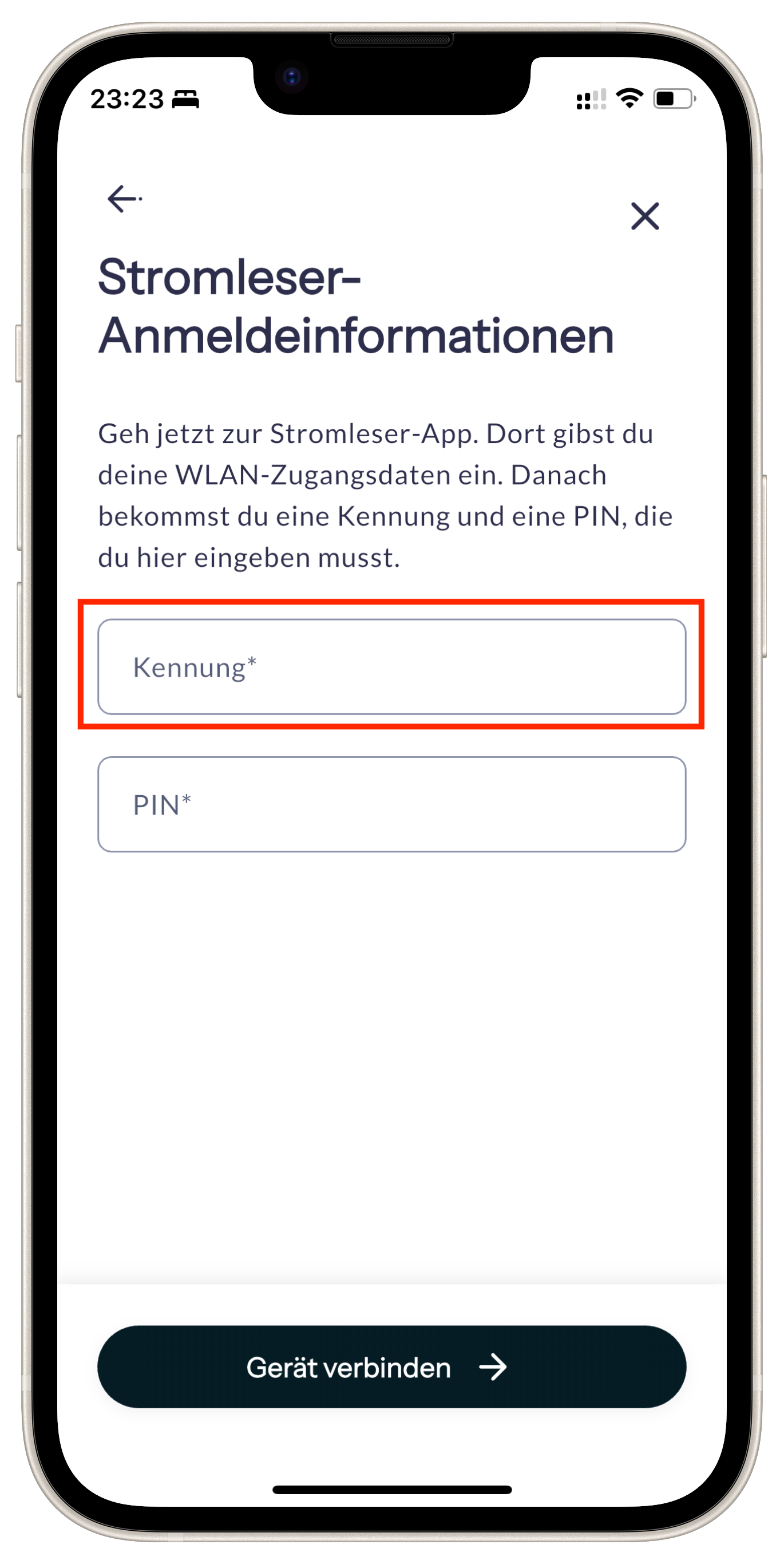
PIN Choice
You can choose any password. This is used for authentication between your Stromleser and Click2Charge.
Step 11: Complete Connection
- Tap "Gerät verbinden" (Connect Device) at the bottom
- Your Stromleser is now connected to Click2Charge!
Common Issues
Device ID Not Displayed
- Make sure your stromleser.one is connected to the internet
- Check that you're using the latest version of the Stromleser app
- Restart the app
Connection Failed
- Verify that the copied Device ID was pasted correctly
- Make sure you selected the correct device in the Stromleser app
- Check your internet connection
Click2Charge Shows No Data
- Wait a few minutes after connecting
- Ensure your Stromleser is providing current measurement data
- Check in the Stromleser app whether measurement values are displayed