Assigning More Sensors
If you use more sensors, you assign them to their ports in the same way. Which sensor belongs on which port is described under Connecting Sensors to the Node. You can see the port numbers in the image.
Assigning the ports in the app applies to pairing with the Bridge. With an external device you assign the ports manually, see Pairing with an External Device.
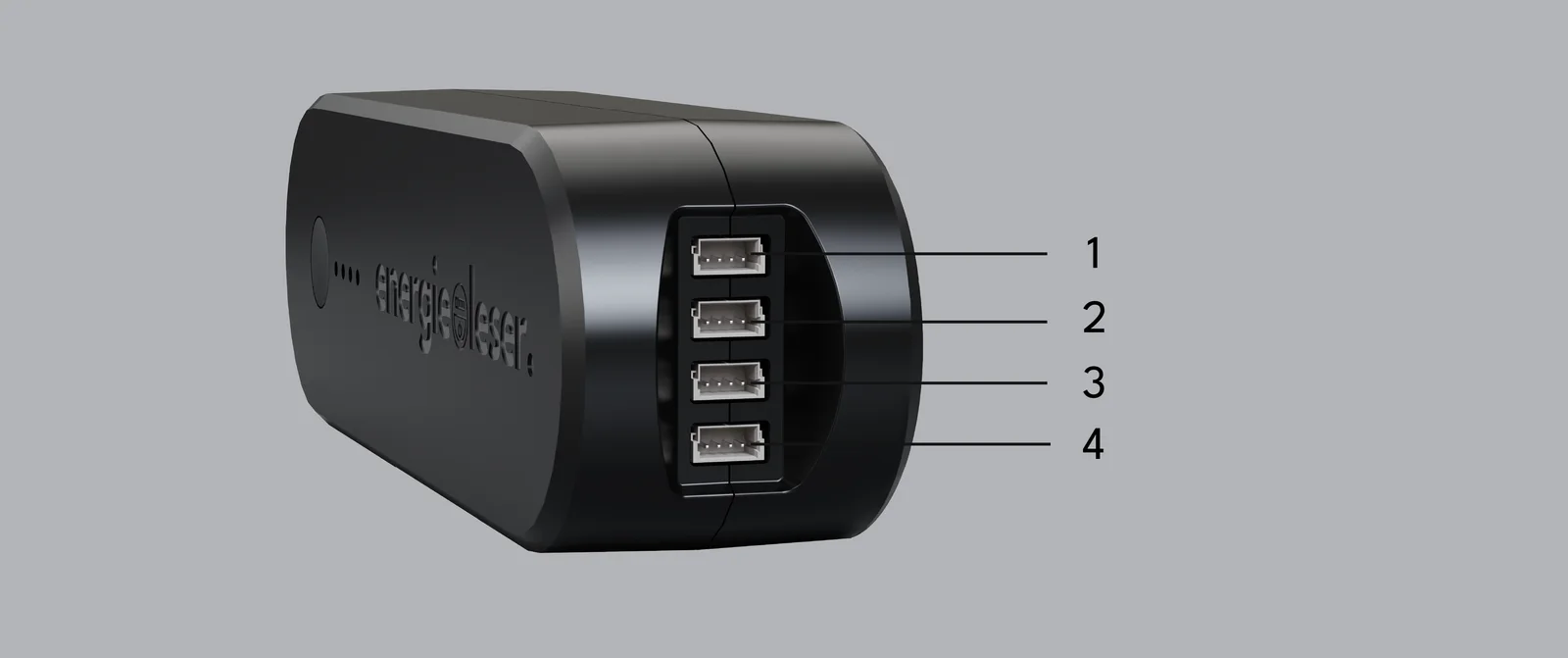
A port is only read once a sensor is assigned to it. For a port without an assignment, the Node assumes that nothing is connected.
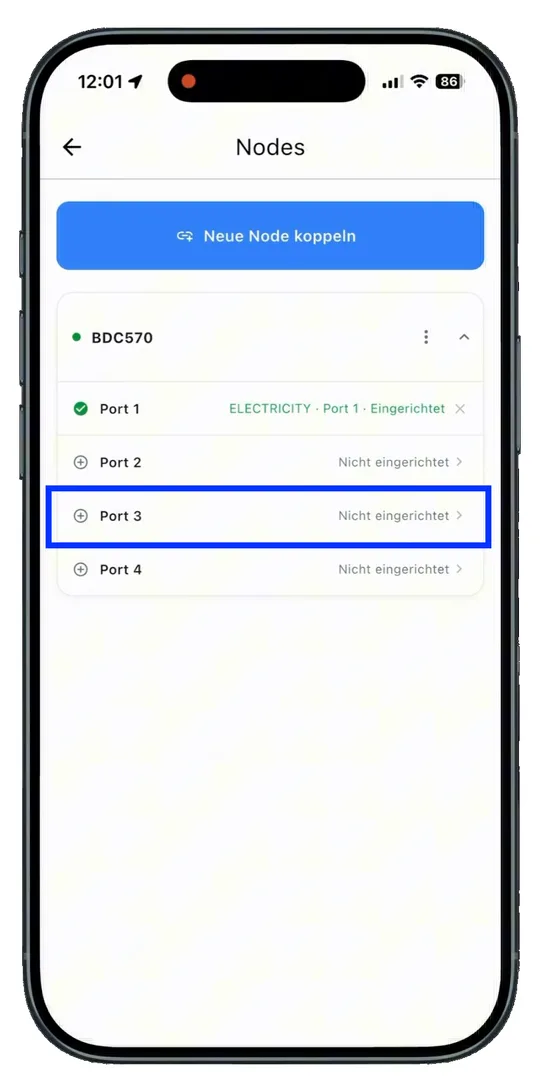
- Open the Node. In the Energieleser app, open your Node and choose a port (1 to 4) that is not set up yet.
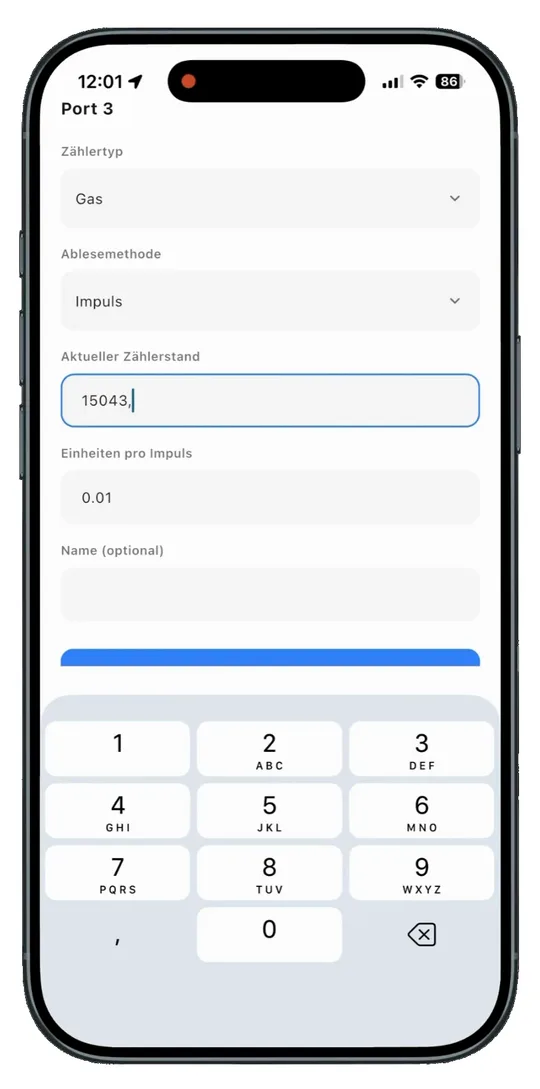
- Enter the sensor details. Enter the details of your meter: meter type, reading method, current meter reading and units per pulse. You can optionally give it a name.
-
Repeat. Repeat the steps for every port you use.
-
View meter data. In the Bridge overview of your app you now find your added meters. Tap a meter to view its data and readings.
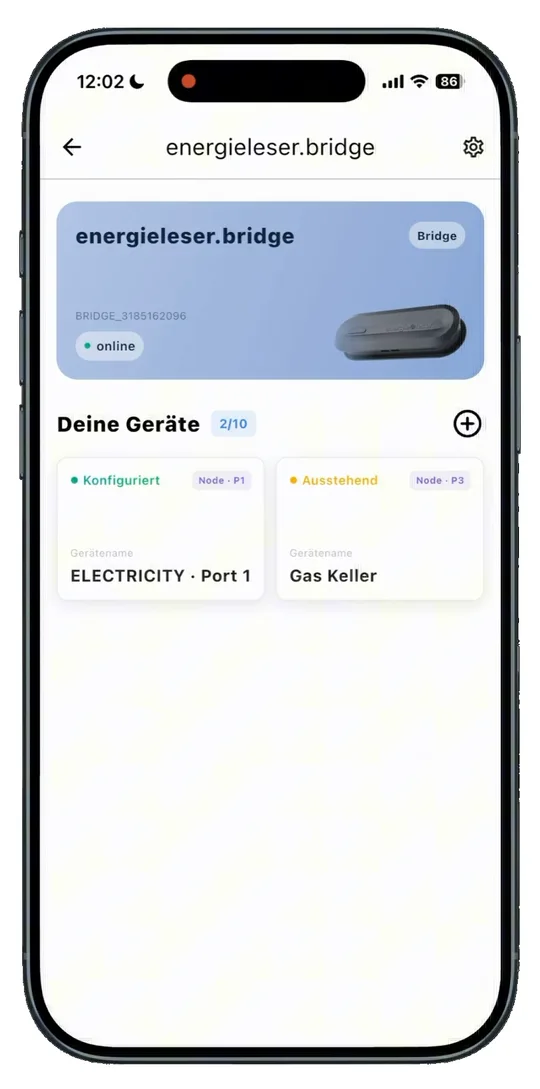
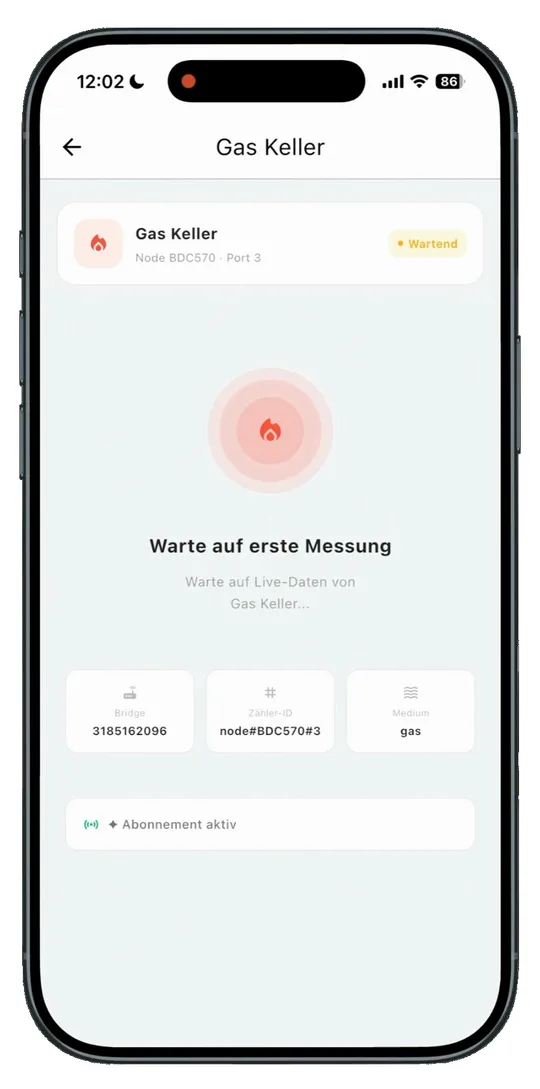
Right after pairing, it can take a while until the first readings appear in the app.
You can only connect the stromleser.ttl and the wärmeleser to Ports 1 + 2. All other sensors work on any port – we recommend Ports 3 + 4, because the battery lasts longest that way. More under Connecting Sensors to the Node.
Next step
Continue with LED Indicators.