Adding radio meters
You can add more devices at any time from the Bridge overview.
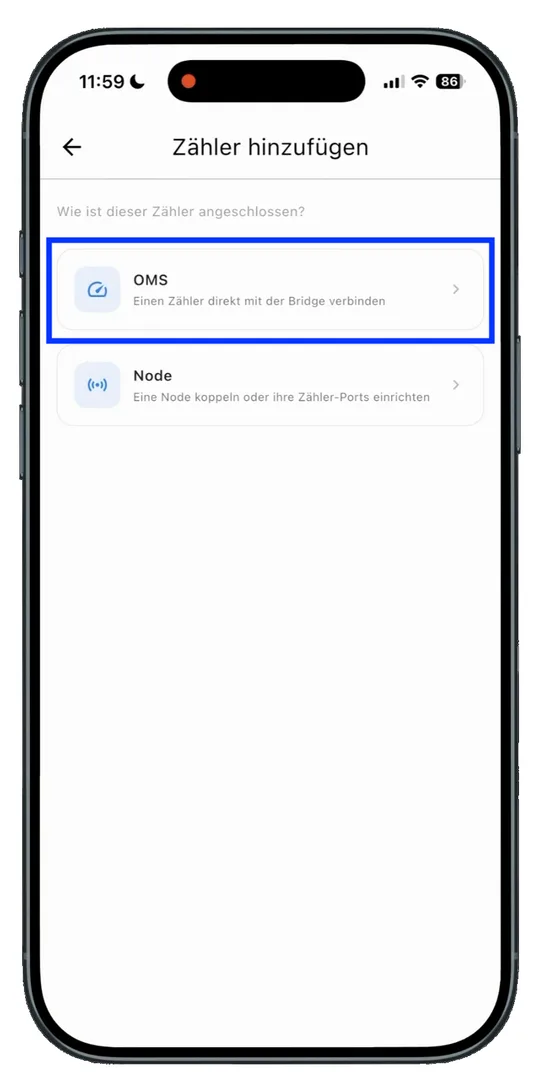
- Select OMS. Select OMS to add a radio meter.
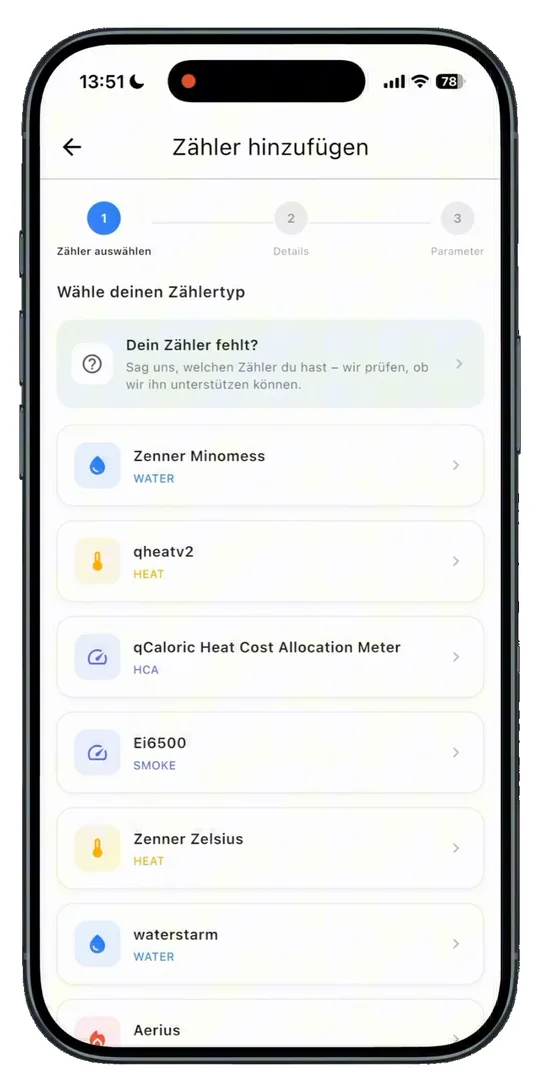
- Select the meter type. Select the type of your meter.
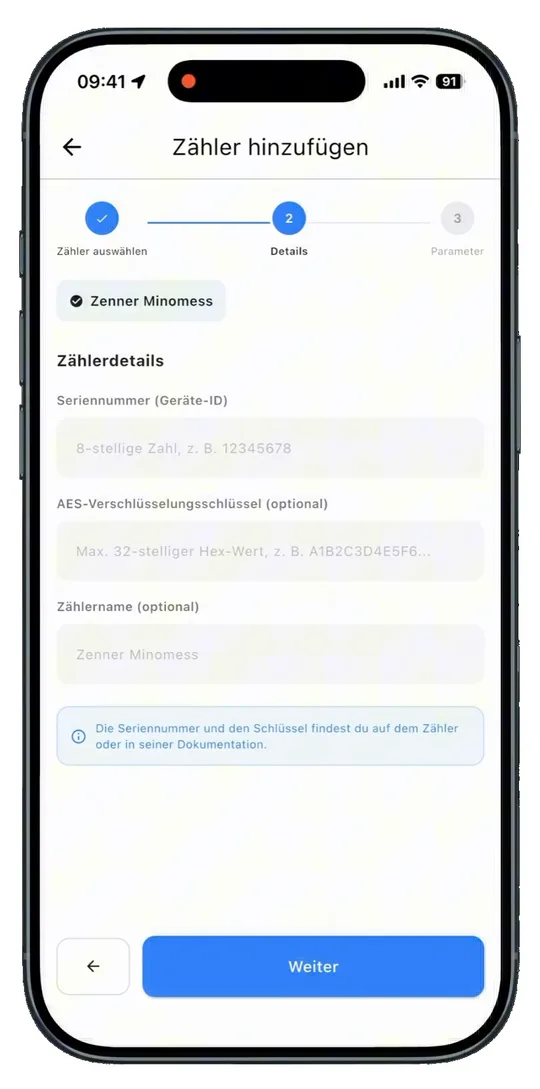
- Enter the meter details. Enter the matching meter number and the AES key. You usually get the AES key from your utility, landlord or property management, less often from the metering point operator or the manufacturer of your meter.
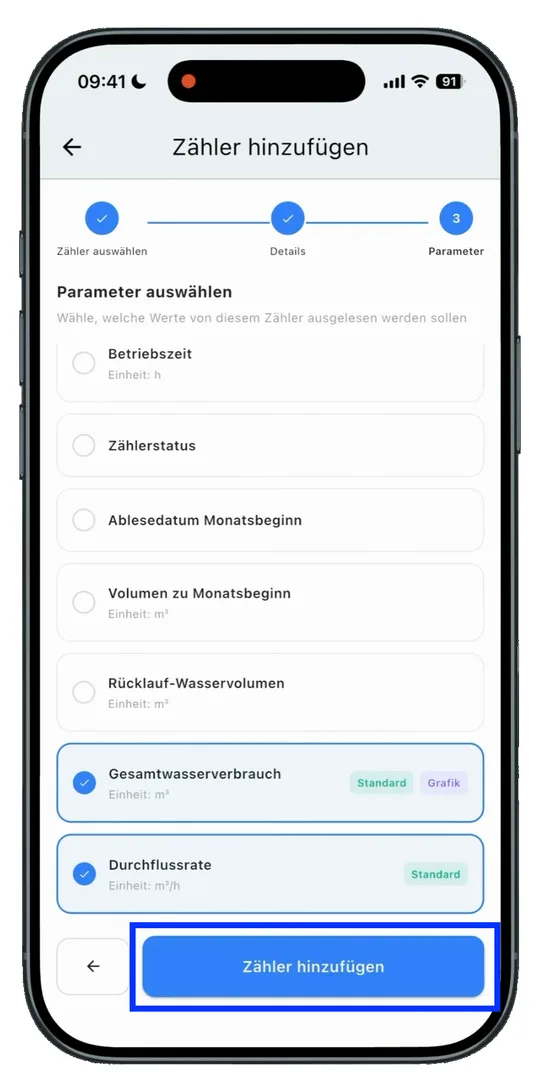
- Select parameters. Select the parameters you want, or confirm the preselection.
-
Add the meter. Finally, add the radio meter.
-
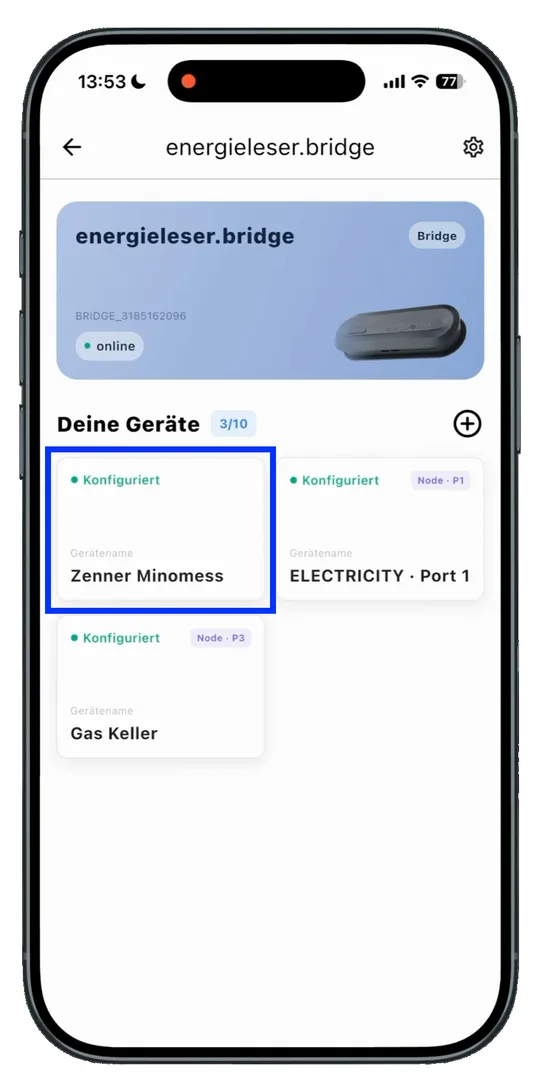
Viewing meter data. Your added meter is now listed in the Bridge overview of your app. Tap the meter to view its data and readings.
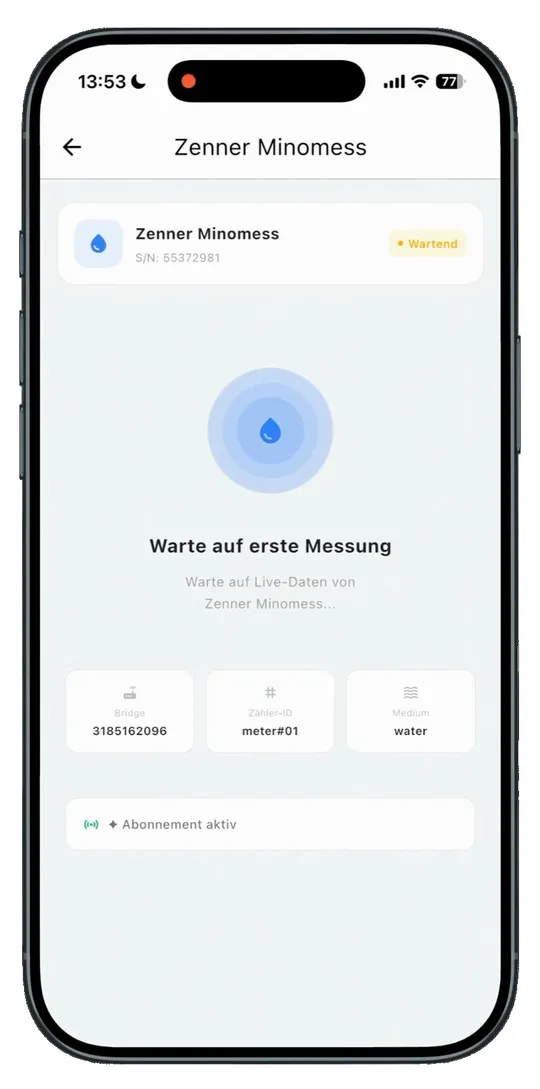
First readings take a moment
Right after adding a meter, it can take a while until the first readings appear in the app.