Initial Reading
After successfully connecting your wasserleser to the app, you need to enter your current water meter reading. This is essential for accurate consumption tracking.
Reading Your Water Meter
Locate the current reading on your water meter display. There are two common display types – depending on which you have, you read the meter slightly differently.
Type 1: Digital Roller Meter (Odometer Style)
Example: SPEWA meter
This meter uses rotating wheels (rollers) to show consumption.
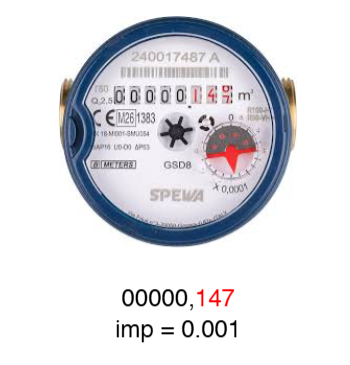
How to read it
- Black digits: Whole cubic meters (m³). These are the first digits (e.g. 00000).
- Red digits: Decimal places (fractions of a cubic meter).
- First red digit = tenths (0.1 m³ = 1/10)
- Second red digit = hundredths (0.01 m³ = 1/100)
- Third red digit = thousandths (0.001 m³ = 1/1000)
Combining the reading
Read the black digits first, add a comma (or decimal point), then the red digits.
Example: Black 00000 + red 147 → Reading: 00000,147
Resolution (imp)
Since one rotation of the pointer (with metal disc) corresponds to 0.0001 per impulse (Imp), the impulse value must be set to 0.001.
Type 2: Hybrid Roller & Gauge Meter
Example: CORONA meter
This type uses rollers for whole numbers and small circular dials (gauges) for the decimals.
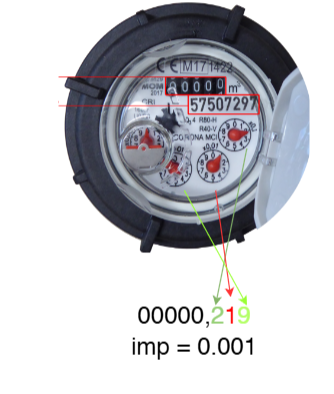
How to read it
- Rollers (whole numbers): Read the black rollers at the top. These are your whole cubic meters (m³).
- Dials (decimals): Look at the small red needles. Each dial is labeled with a multiplier:
- x0.1: The number the needle points to is the first decimal digit.
- x0.01: The number the needle points to is the second decimal digit.
- x0.001: The number the needle points to is the third decimal digit.
Combining the reading
Write the whole number from the rollers, then the digits from the dials in order (x0.1 → x0.01 → x0.001).
Example: Rollers 00000 + dials (2, 1, 9) → Reading: 00000,219
Resolution (imp)
Since one rotation of the pointer (with metal disc) corresponds to 0.0001 per impulse (Imp), the impulse value must be set to 0.001.
Quick reference: Resolution (imp)
The imp value indicates how precise the reading is, based on how many decimal places you record:
| Decimal places | Resolution (imp) | Equivalent volume |
|---|---|---|
| 1 digit (e.g. ,1) | 0.1 | 100 liters |
| 2 digits (e.g. ,14) | 0.01 | 10 liters |
| 3 digits (e.g. ,147) | 0.001 | 1 liter |
| 4 digits (e.g. ,1470) | 0.0001 | 0.1 liters |
Entering the Reading and Resolution (imp) in the App
During setup you enter both the current meter reading and the resolution (imp) in the app.
Setting the resolution (imp)
The app asks for your meter’s resolution (imp). This defines how precisely the wasserleser records each liter (or fraction).
- Default: The app sets the impulse value based on the decimal places you enter. The pointer with the metal disc is not included in the reading.
- Changing it: If your meter only has two decimal places, select 0.01. For four decimal places, select 0.0001. Use the table above as a guide.
Most domestic water meters have three decimal places. 0.001 (the default) is usually correct and doesn’t need to be changed.
Entering the reading
- After completing the app setup, you'll be prompted to enter the initial reading
- Enter your current water meter reading including decimal places (e.g. 00000,147 or 00000,219)
- Verify the number is correct
- Confirm and save
Enter all visible digits including decimal places for the most accurate tracking. The more precise your initial reading, the better your consumption data will be.
Why This Is Important
The initial reading serves as the starting point for all consumption calculations:
- Baseline: Establishes the zero point for tracking
- Accuracy: Ensures correct consumption measurements
- History: Allows for proper historical data tracking
If you disconnect the wasserleser from power, you may need to re-enter the current meter reading. See Recalibration for more information.
Next Steps
After entering the initial reading:
- Your wasserleser will begin tracking consumption in real-time
- View your data on the app's home screen
- Optionally configure Water Parameters for cost tracking